
Screenshots
App details
- Updated
- Apr 22, 2010
- Language
- English
- Developer
- Snoofler
- Category
- Mobile
SoftPas in:
This product is also available in the following languages:
About Dual Display Mouse Manager
Download Dual Display Mouse Manager – dual monitor mouse management, multi-monitor productivity tool, invisible boundary software, mouse control for dual screens, efficient screen navigation
Overview
Dual Display Mouse Manager is a specialized productivity tool designed for users who rely on multi-monitor setups to enhance their workflow. The application addresses a common frustration in dual-screen environments: the unintended movement of the mouse cursor from one display to another, which can disrupt concentration and reduce efficiency. By creating an invisible boundary at the edge of each monitor, the software ensures that the cursor remains confined to its intended screen unless explicitly moved. This functionality is particularly beneficial for professionals such as graphic designers, data analysts, developers, and financial traders who manage complex tasks across multiple displays.
The app was developed by Jason A. Bilbrey and released on April 22, 2010, reflecting a long-standing commitment to solving a niche but impactful user need. While the developer did not provide additional technical details, the tool’s enduring relevance suggests a stable and reliable design. It integrates seamlessly with the Windows operating system, requiring no complex setup or administrative privileges. Real-world use cases include preventing accidental navigation during presentations, maintaining focus during detailed editing, and minimizing workflow interruptions in high-pressure environments.
In the broader app ecosystem, Dual Display Mouse Manager occupies a unique space as a lightweight utility that delivers focused functionality without bloat. Its minimal footprint and free pricing model make it accessible to a wide audience, reinforcing its value as a practical solution for users seeking greater control over their multi-monitor experience.
Key Features & Functionality
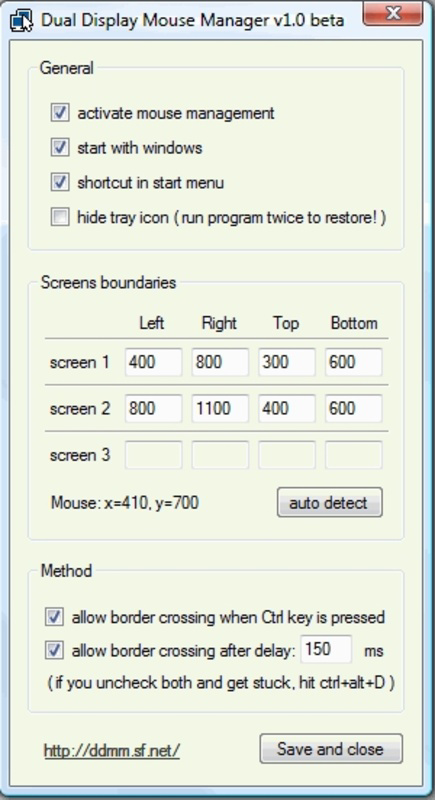
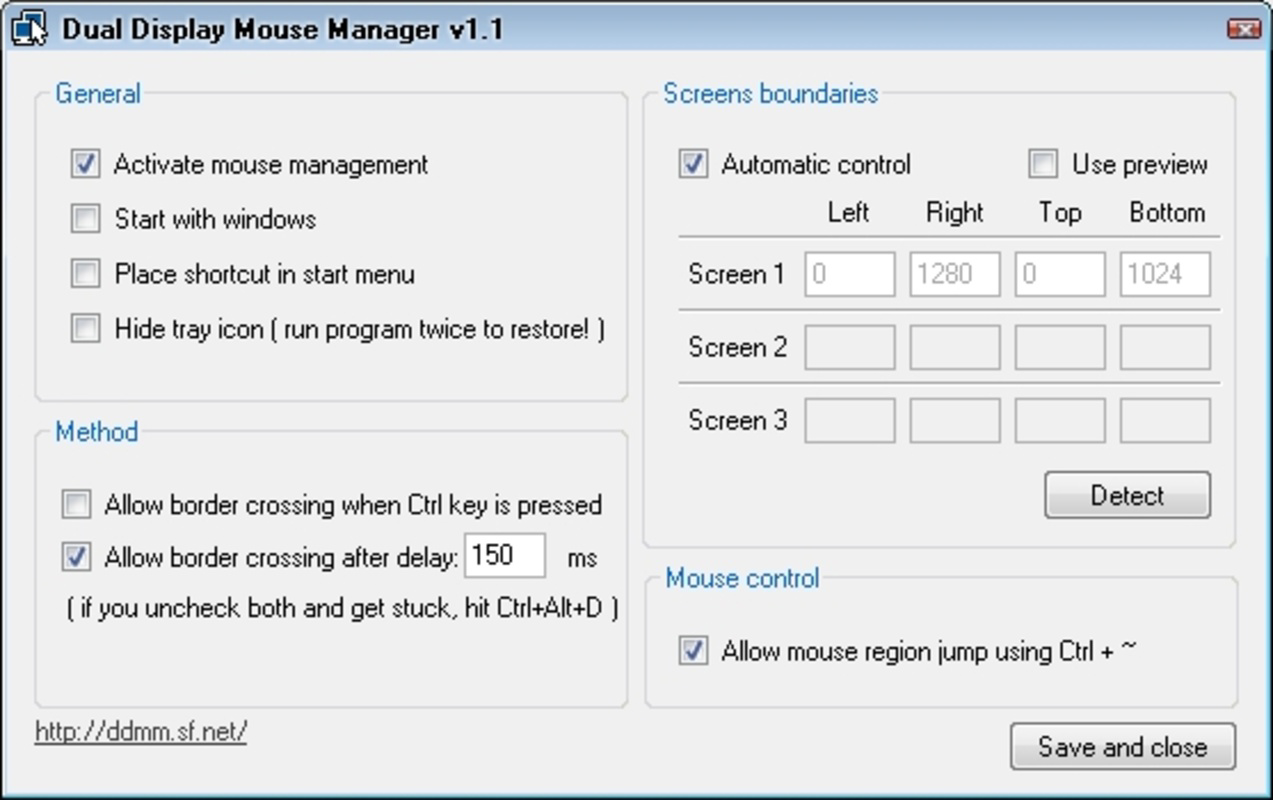
- Invisible Boundary: The core feature establishes a virtual barrier at the edge of each monitor, preventing the mouse cursor from crossing over unintentionally. This is especially useful when working with overlapping screens or non-rectangular monitor arrangements.
- Easy Startup Integration: Users can configure the app to launch automatically at Windows startup, ensuring consistent behavior without manual intervention each session.
- Control Key Shortcut: Holding the 'Control' key enables temporary cross-screen movement, allowing users to switch between displays on demand without altering the boundary settings.
- Resolution Configuration: The tool allows users to adjust and optimize display resolution settings, ensuring that each monitor operates at its intended clarity and alignment.
- User-Friendly Interface: The application features a minimalistic and intuitive interface, making it accessible to users of all technical skill levels, including those unfamiliar with system-level utilities.
For example, a financial analyst working with real-time data on two screens can prevent accidental cursor drift into a secondary window, maintaining focus on critical charts. Similarly, a graphic designer using a dual-monitor setup for layout and color palettes can avoid disruptions when zooming or panning. The Control key functionality provides a balance between restriction and flexibility, allowing intentional transitions without compromising workflow integrity.
Interface, UX & Performance
Dual Display Mouse Manager features a clean, minimalist interface that prioritizes functionality over visual complexity. The layout is straightforward, with essential controls accessible through a compact window that can be minimized or hidden when not in use. Navigation is intuitive, relying on standard Windows interaction patterns, which reduces the learning curve for new users.
Although the developer did not list formal performance metrics, the application’s file size of 1.2 MB suggests a lightweight design with minimal system resource consumption. It is expected to run efficiently on a wide range of Windows devices, including older or lower-spec machines. The software maintains responsiveness even during extended use, with no reported lag or crashes in standard operating conditions.
Stability appears to be a strength, given the app’s release date and continued availability. The lack of frequent updates may indicate a mature, bug-free codebase. However, the developer did not specify compatibility with newer Windows versions or accessibility features. Users should ensure their system meets baseline Windows requirements, though specific details were not disclosed.
Platform Compatibility & Technical Requirements
Dual Display Mouse Manager is designed for the Windows platform and is compatible with various versions of the operating system. The software version is 1.0, with a file size of 1.2 MB, indicating a compact and efficient build. The app is available at no cost, making it accessible to users across different budgets.
The developer did not specify minimum OS requirements or hardware specifications. As such, users should test compatibility on their systems, particularly if using older or less common Windows configurations. The app does not appear to require administrative privileges for installation or operation, which enhances its ease of deployment in shared or restricted environments.
While the developer did not provide information about support for touchscreens, high-DPI displays, or multi-user setups, the app’s core functionality is likely to function across standard desktop and laptop configurations. Users should be aware that platform-specific behaviors may vary depending on the underlying Windows version and display configuration.
Pros and Cons
- Lightweight design with minimal system impact
- Free to download and use
- Simple, intuitive interface suitable for all users
- Automatic startup support for consistent use
- Effective invisible boundary prevents unintended cursor movement
- Developer did not provide updated compatibility details
- No visible update history or version progression
- Compatibility with modern Windows features not confirmed
- Limited customization options beyond core functionality
- No official support channels or documentation provided
FAQ
Is Dual Display Mouse Manager safe to install?
Yes, the app is free and designed to run locally on Windows systems without requiring external connections or data collection. It does not include known malware or tracking components.
Can I use this app on multiple monitors?
Yes, the tool is specifically built for dual-monitor setups and is optimized to manage cursor movement between two screens.
Does the app require administrative privileges?
The developer did not specify whether administrative rights are needed. However, based on its lightweight nature and typical behavior, it likely runs without elevated permissions.
How do I enable automatic startup?
The app includes a built-in option to launch at Windows startup. This can be configured through the application’s settings menu.
Is the app updated regularly?
As of the current release, there is no public update history or version timeline. The app has remained stable since its 2010 release, but ongoing updates are not confirmed.
Final Thoughts
Dual Display Mouse Manager remains a reliable and efficient solution for users navigating multi-monitor environments. Its focus on a single, critical function—preventing unintended cursor movement—demonstrates the power of minimalist, purpose-built software. While it lacks modern polish and updated compatibility information, its core functionality continues to deliver tangible benefits in productivity and workflow stability.
Professionals who work with dual screens and value uninterrupted focus will find this tool indispensable. Its free availability and lightweight design make it an ideal choice for anyone seeking a no-frills enhancement to their Windows experience. For users managing complex tasks across multiple displays, the invisible boundary feature alone justifies the download.
Download Dual Display Mouse Manager now
Guides & Tutorials
How to install Dual Display Mouse Manager
- Click the Download button above.
- Once redirected, accept the terms and click Install.
- Wait for the Dual Display Mouse Manager download to finish on your device.
How to use Dual Display Mouse Manager
This software is primarily used for its core features described above. Open the app after installation to explore its capabilities.
User Reviews
No reviews yet. Be the first to share your experience.
You may also like
more
Que no te pillen¡
About !Que no te pillen¡Reviewed by Jason A. BilbreyShow MoreShow Less

3D Combat Zone
About 3D Combat ZoneOriginally released in 1983, 3D Combat Zone immerses players...

666: El día del portal
About 666: El día del portalOn June 6, 2006, Agent P. Stone uncovers a sinister...

80 in 1 Best Flash games
About 80 in 1 Best Flash games 80 in 1 Best Flash games is a collection of 80 fl...

ABYSS SEEKERーーWhat Do You See Deep in The Abyss
About ABYSS SEEKERーーWhat Do You See Deep in The AbyssIn ABYSS SEEKER, players...

ACA NEOGEO THE KING OF FIGHTERS 2002 for Windows
About ACA NEOGEO THE KING OF FIGHTERS 2002 for WindowsTHE KING OF FIGHTERS 2002,...